How can we help you today?
Step-by-step walkthroughs for every part of KairosStaff — from your daily dashboard to the desktop app.
DashboardYour home base for the day’s overview
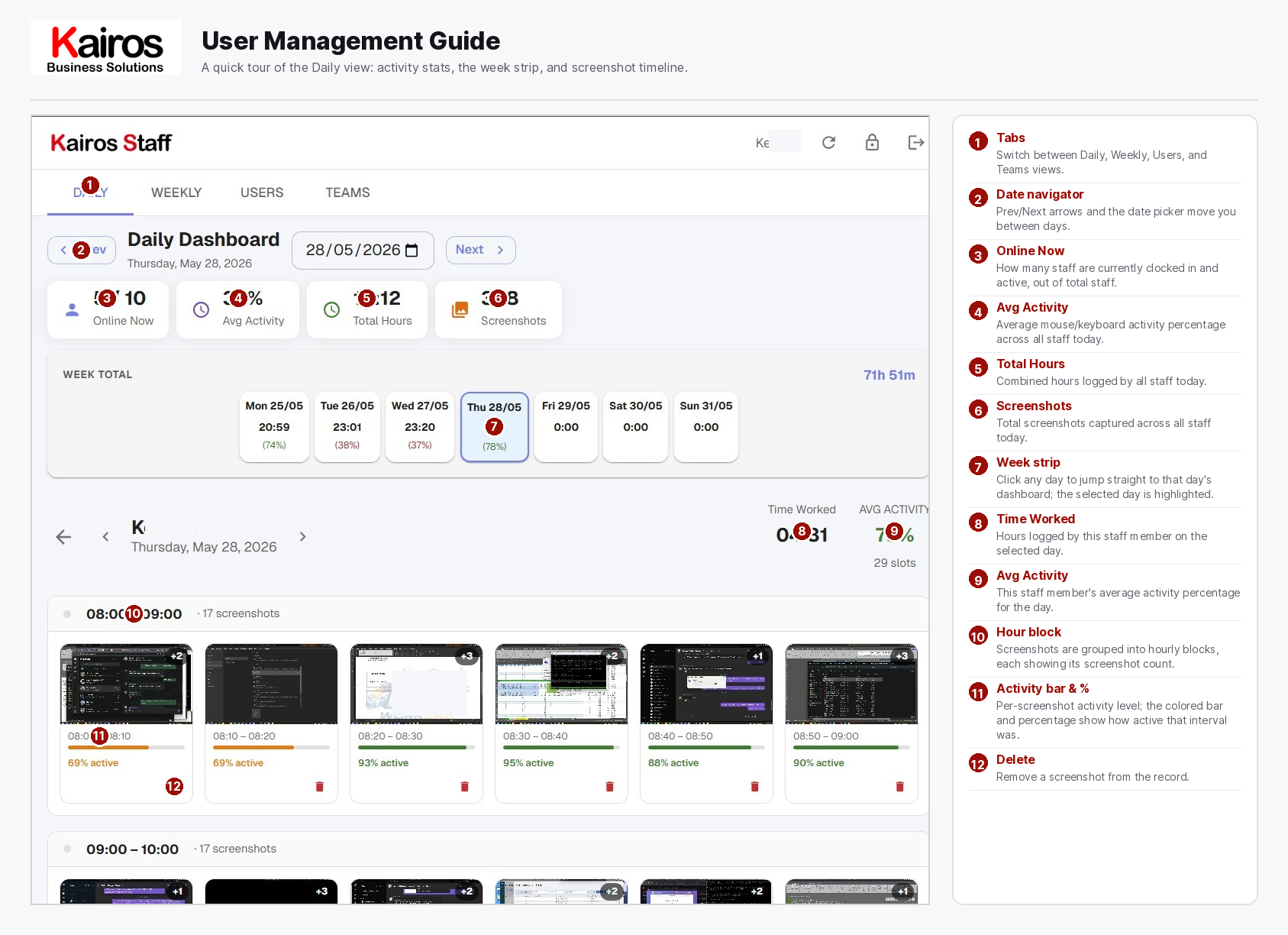
Land on your personalized dashboard the moment you sign in, with today’s status, quick shortcuts, and recent activity all in one place.
What you’ll find
- Today’s clock-in status
- Quick-access shortcuts to Daily and Weekly views
- Recent activity feed
- Notifications and account menu
DailyTrack your day, one entry at a time
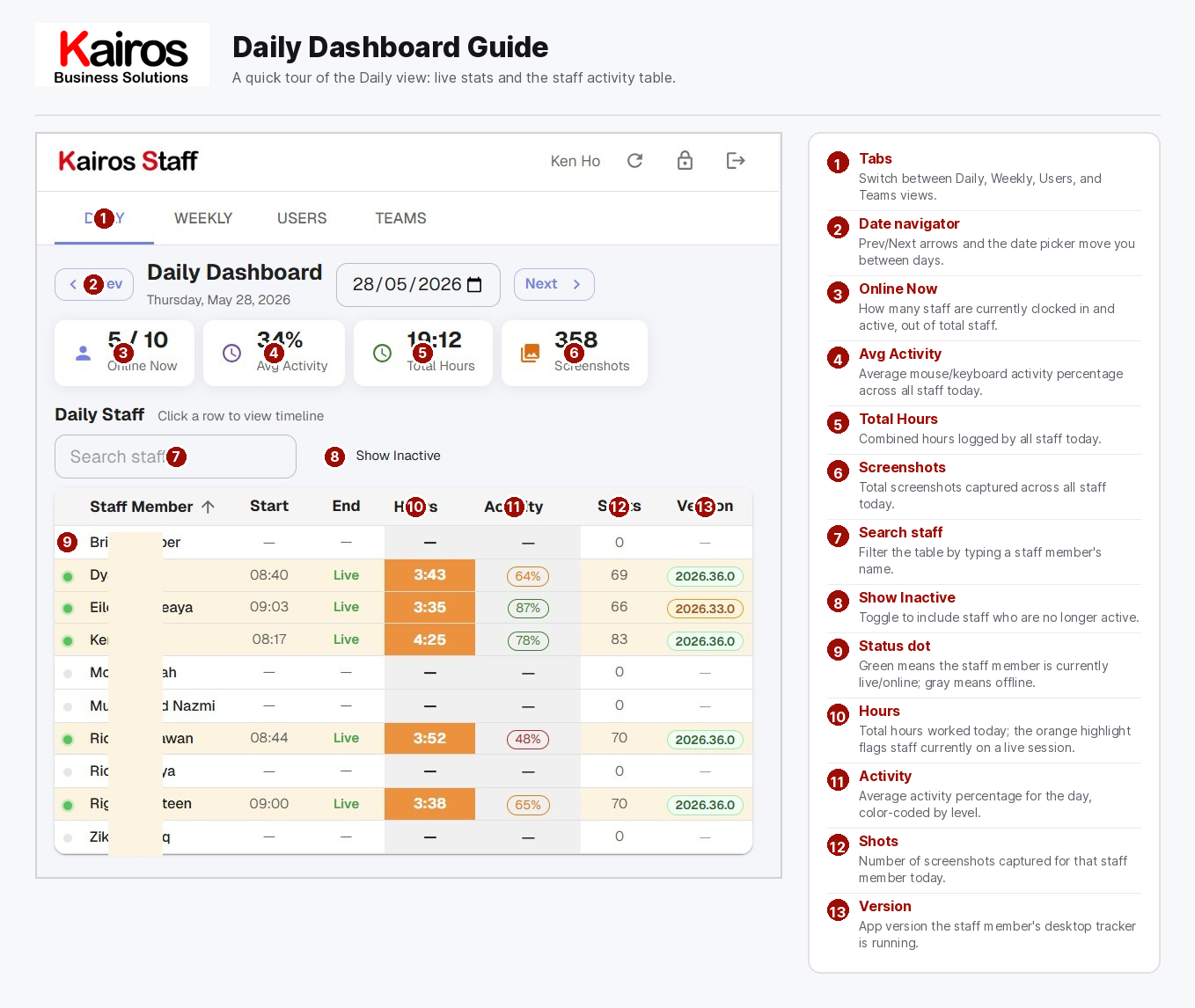
Log time against tasks and projects as you go, and see a running view of everything you’ve worked on since you started your day.
What you’ll find
- Start and stop time-tracking controls
- Task and project tagging
- Running daily total
- Notes on individual entries
- Edit or delete a logged entry
WeeklyReview your week in one view
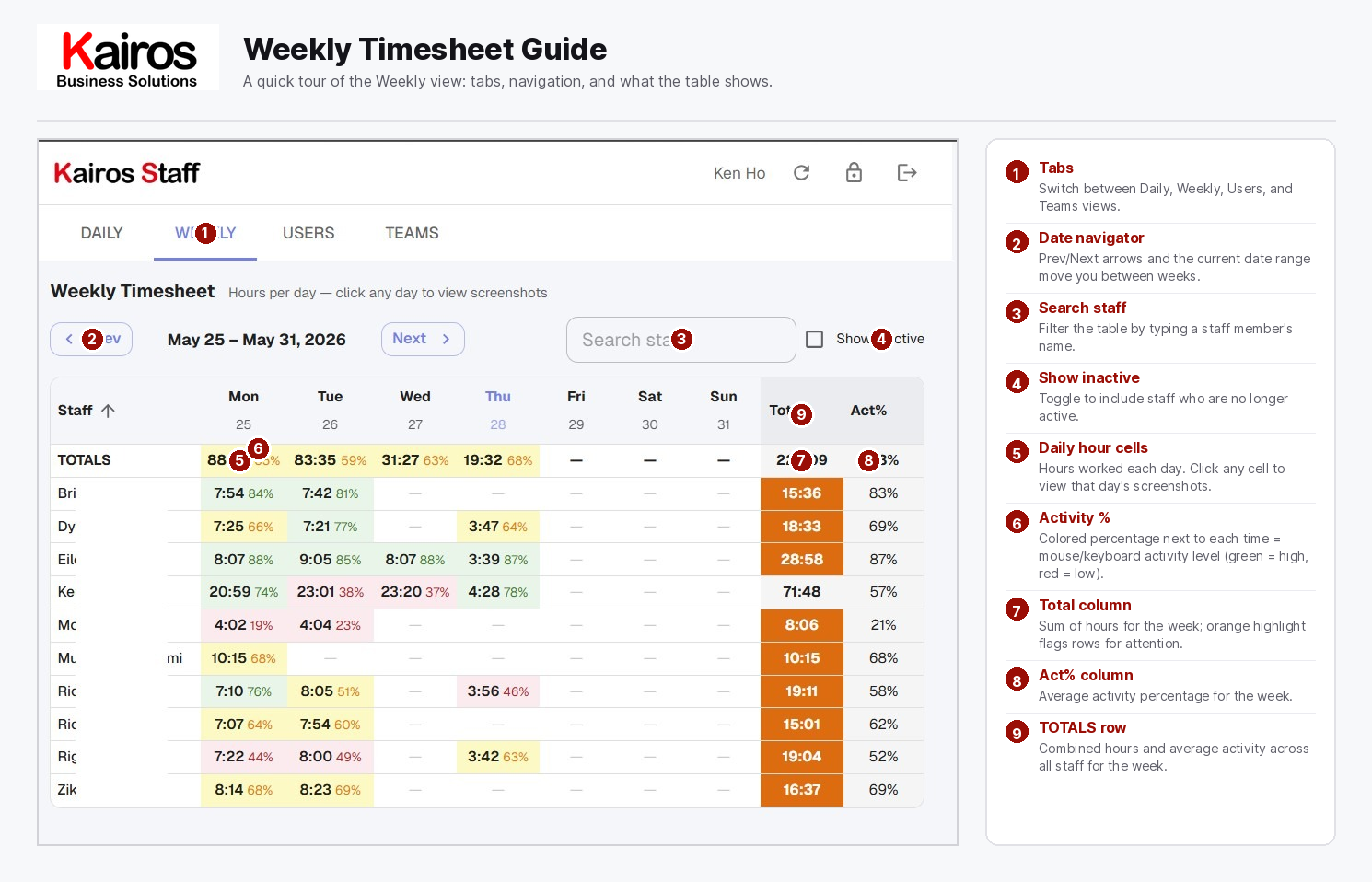
Roll up every daily entry into a single weekly activity report you can check over before it’s submitted.
What you’ll find
- Day-by-day breakdown
- Weekly total hours
- Project and task summary
- Submission status
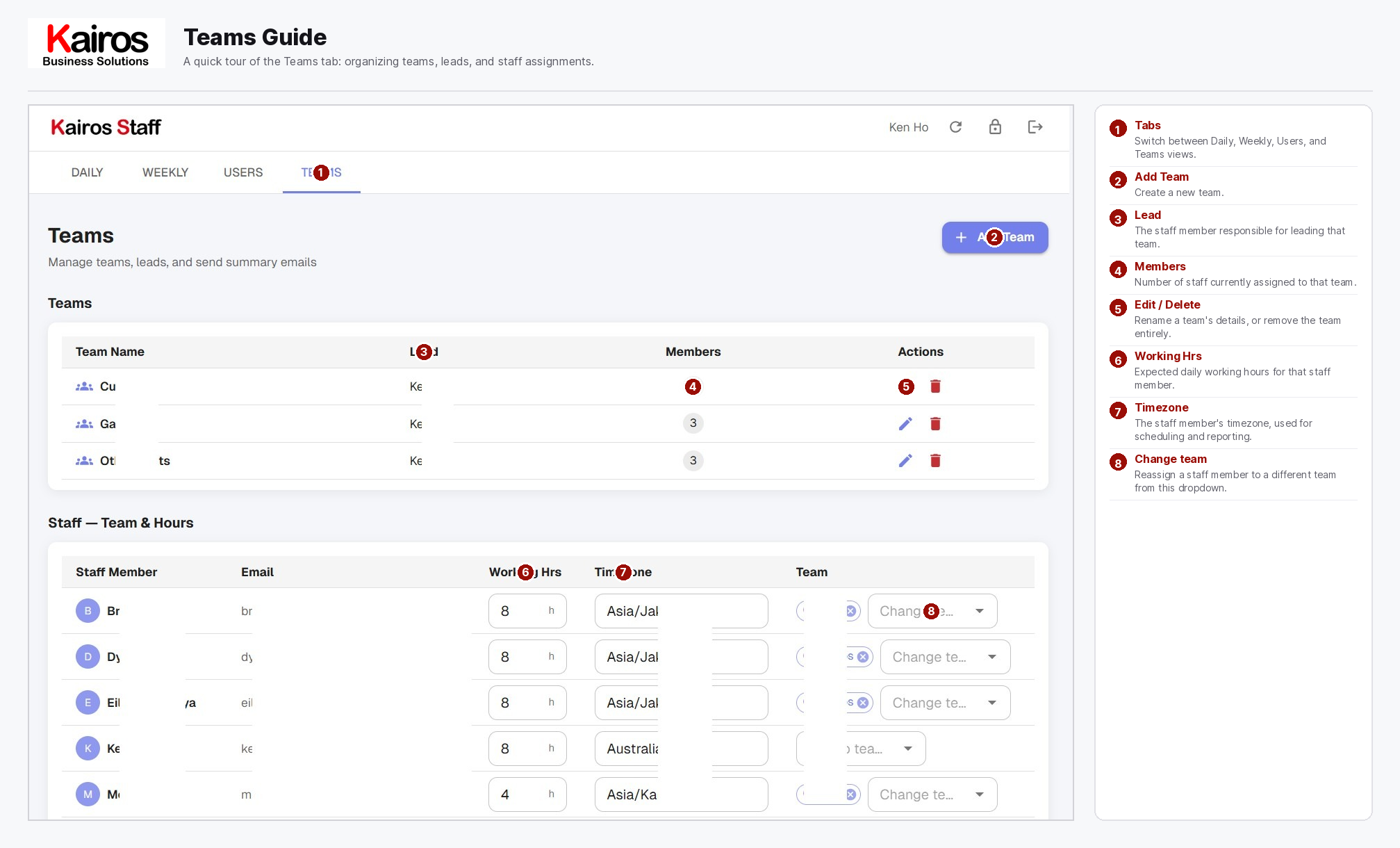
TeamsSee who you’re working with
Browse your team roster and see how your day-to-day work fits into the wider group.
What you’ll find
- Team member list
- Roles and reporting lines
- Team-level activity summary
ScreenshotsAutomatic activity captures
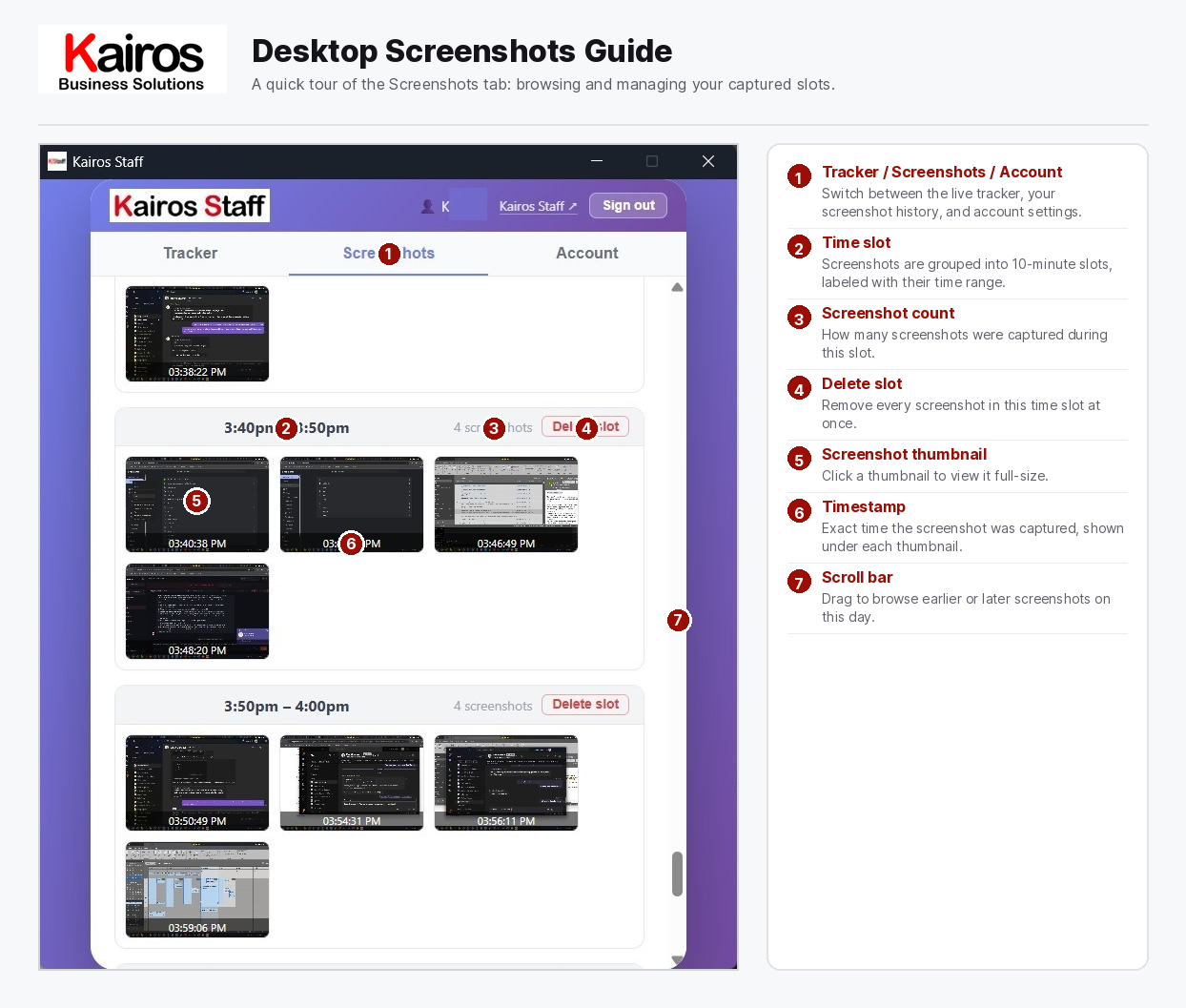
KairosStaff periodically captures screenshots while you’re tracking time, giving you and your manager a transparent record of active work.
What you’ll find
- Timestamped capture gallery
- Thumbnail and full-size preview
- Which task or entry a capture belongs to
UserManage your profile and preferences
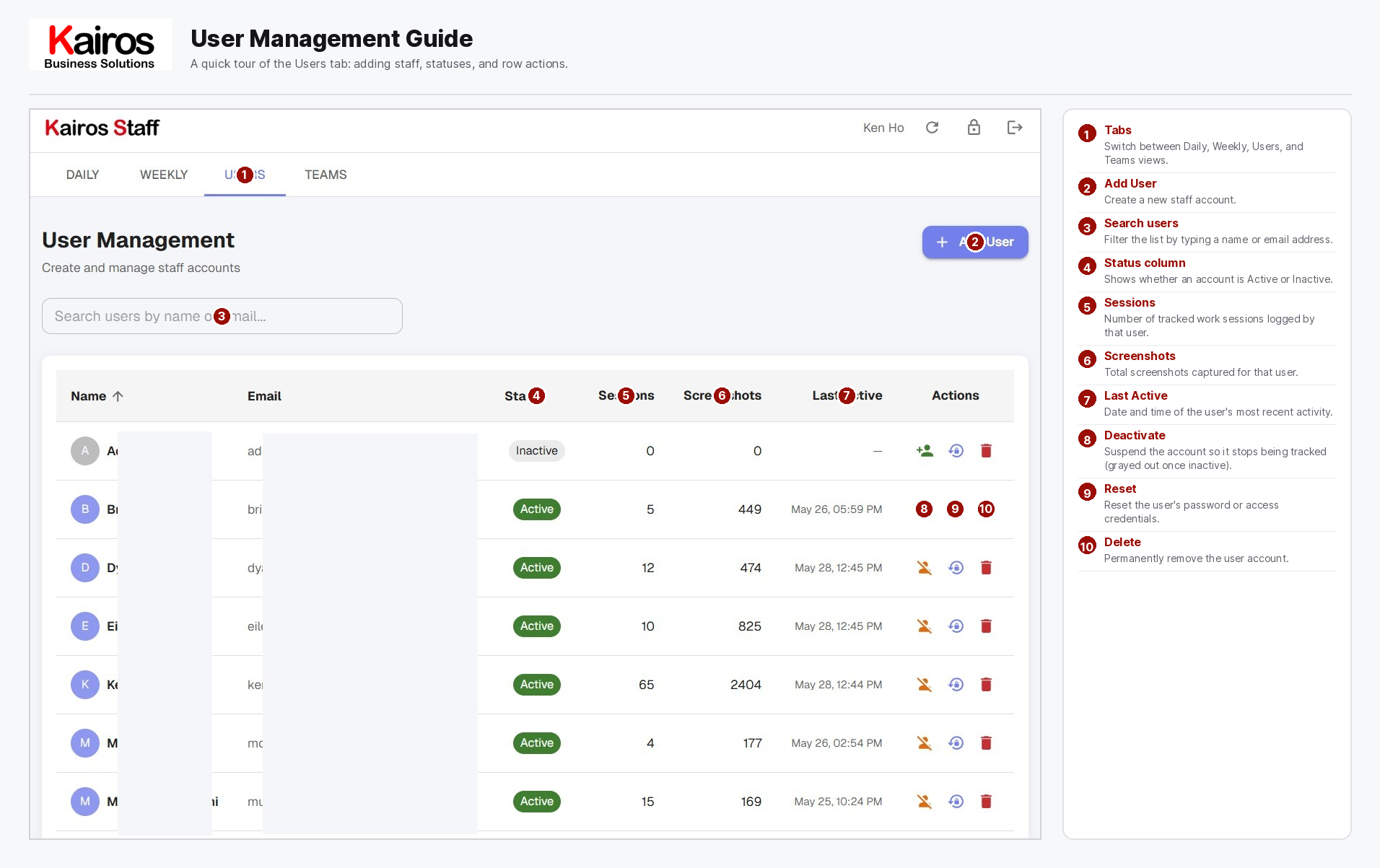
Update your personal details, notification settings, and account preferences from your profile.
What you’ll find
- Profile photo and contact details
- Password and notification settings
- Timezone preferences
DesktopTrack time from your desktop
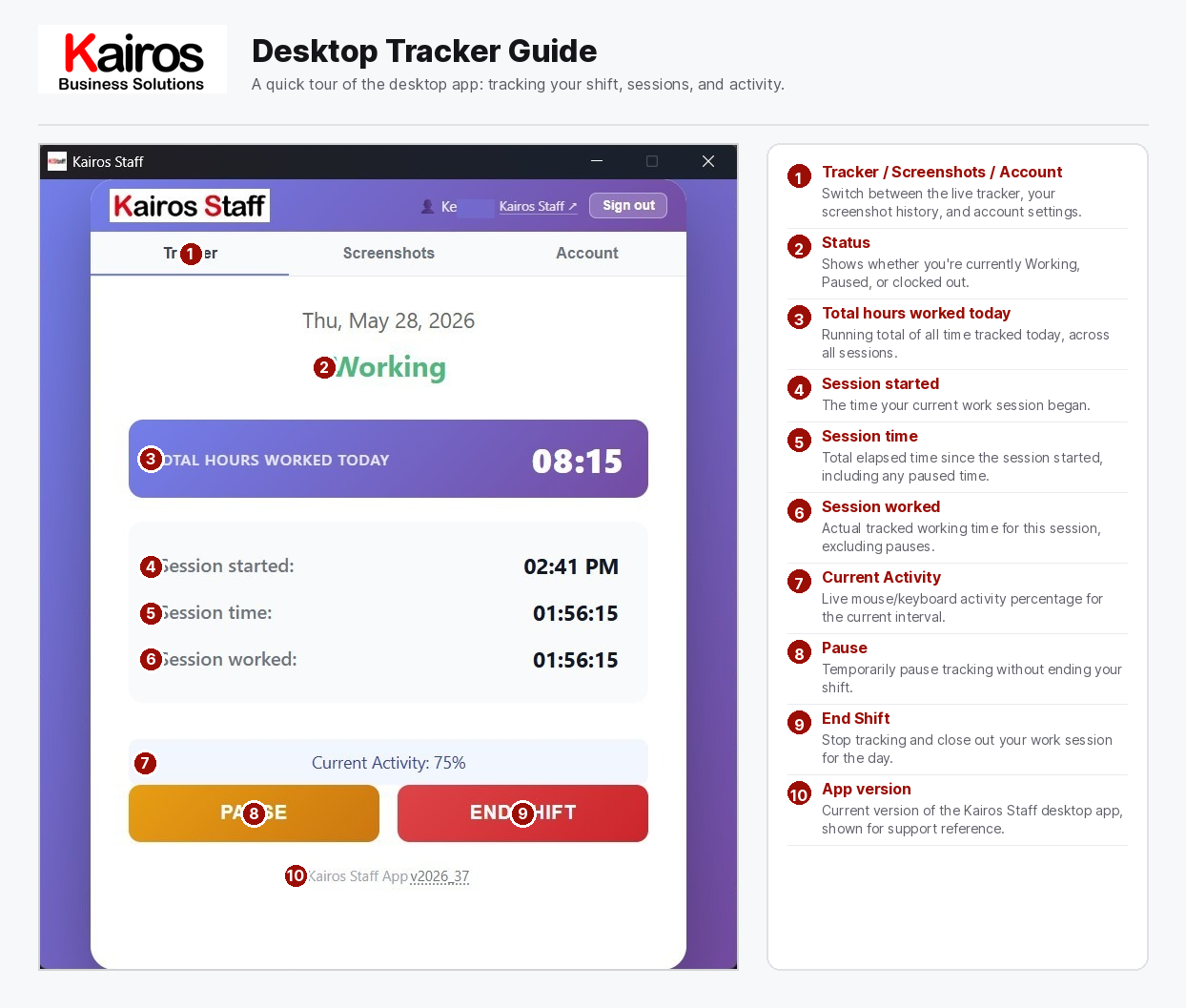
Install the desktop app to start and stop tracking directly from your computer, no browser tab required.
What you’ll find
- One-click clock in and out
- Always-on tray icon with live status
- Automatic sync with your Daily and Weekly views
We’re happy to walk you through it.
If a step in this guide doesn’t match what you’re seeing, or something looks off, reach out and we’ll help directly.